Your small business website asks for user data. It might be an email address for a newsletter or a credit card number for a new product. In that critical moment, your potential customer pauses. They are asking a silent, vital question: “Can I trust this website?” This hesitation is the “digital trust gap.” In 2025, with data breaches making headlines, this gap is wider than ever.
How do you bridge this gap? You provide proof. This is where a website security badge comes in. A website security badge is a visual stamp of approval. It is a sign from a trusted, independent third party that verifies your site is legitimate and secure. These badges are not just simple graphics; they are powerful trust signals that directly impact your credibility and, most importantly, your conversion rates.
Many small business owners know they need these, but the path to get them is often unclear. Users are trained to look for authentic verification, and a genuine website security badge is the difference between a new customer and an abandoned cart.
This guide will provide the technical “how-to” for getting security badges for your website. We will cover everything from the mandatory browser padlock to premium trust seals. You will learn how to get a website security badge, which ones matter, and where to place them to prove your commitment to user security.
What Are Website Security Badges? (And What They Are Not)
A website security badge is a visual icon displayed on your site that verifies its security and authenticity. Think of it as a digital certificate of inspection. When a user sees a familiar website security badge, it tells them your site has been checked by a credible, external organization. This organization (the “issuer”) has confirmed that you are who you say you are, that your site is free of malware, or that your data is encrypted.
It is critical to understand what they are not. A website security badge is not just any “secure” image you find on the internet and upload to your footer. That is a static, fake badge and can destroy your credibility if a user discovers it is not real.
The value of a true website security badge lies in its verification. This brings us to the most important distinction: dynamic vs. static badges.
-
Dynamic Website Security Badge: This is the only type of badge that has real value. A dynamic badge is “live.” It is usually loaded from the provider’s server. When a user clicks on it, it opens a pop up or a new page. This page shows a verification certificate. It details who issued the badge, what was verified (like an SSL certificate or a malware scan), and when the verification is valid. This is active, verifiable proof.
-
Static Website Security Badge: This is just an image file (like a JPEG or PNG). It does not link to anything. It does not provide any proof. Many payment processors, like PayPal or Stripe, offer these static badges. While they use “borrowed trust” (people trust the PayPal logo), they hold far less power than a dynamic seal. A savvy user knows a static image cannot prove your site is currently secure.
A genuine website security badge is a service you earn, not an image you download.
For small businesses, these badges are typically broken down into three core categories, each verifying a different aspect of your site’s trustworthiness. The type of website security badge you need depends on what your website does.
-
SSL/TLS Badges: These verify that data is encrypted.
-
Vulnerability/Malware Scan Badges: These verify that your site is clean from hackers and viruses.
-
Payment & Business Verification Badges: These verify that your business is a real, legitimate entity and that your checkout process is secure.
We will analyze how to get each specific website security badge in the sections below.
The Business Case: Do Security Badges Actually Work?
A common question from business owners is: “Do security badges actually do anything?” From a technical and psychological standpoint, the answer is an emphatic yes. Investing in a website security badge is not just an IT expense; it is a marketing investment in conversion rate optimization.
The Primary Benefit: Psychological Trust and Reduced Anxiety
The main power of a website security badge is psychological. It works to reduce friction at the exact moment a user feels most anxious. This “checkout anxiety” or “form anxiety” is the main reason for abandoned carts and incomplete forms.
Think of it thisOPEN. When a user is about to type their credit card number, their brain is on high alert for risk. A website security badge acts as a visual reassurance. It is the digital equivalent of seeing a security guard at a bank’s entrance or a clean hygiene certificate on a restaurant’s wall. It non-verbally communicates: “This place is safe. You can proceed.”
High-recognition logos are key. When a user sees a badge they recognize, like the DigiCert (formerly Norton) checkmark or the McAfee (now TrustedSite) seal, they transfer their trust in that brand to your website. This is “borrowed trust,” and it is incredibly powerful. The website security badge is a simple visual cue that stops the user from second guessing and clicking the “back” button.
The Secondary Benefit: Measurable Lifts in Conversion Rates
This psychological trust translates directly into measurable revenue. While results vary, many e-commerce businesses report significant conversion lifts after adding a prominent, well-known website security badge.
Independent A/B tests (where one set of users sees the badge and another does not) have shown this. If your site processes 1,000 transactions a month, and adding a trusted website security badge boosts your conversion rate by even 2%, that is 20 new sales every month. The badge often pays for itself very quickly.
This is why you see them on the checkout pages of the world’s largest online retailers. They are not there for decoration. They are there because they are proven to reduce cart abandonment and increase sales. The better the brand recognition of the website security badge, the higher the potential lift.
The Tertiary Benefit: The SEO Connection (HTTPS)
This is a critical distinction that many small business owners misunderstand. Let’s be very clear:
-
Displaying a malware scan badge (like from TrustedSite) is not a direct Google ranking factor. Google’s algorithm does not “see” the badge and rank you higher.
-
However, the technology behind the most important type of website security badge is a confirmed, major ranking factor.
I am talking about the SSL/TLS certificate. When you install an SSL certificate, you get two things:
-
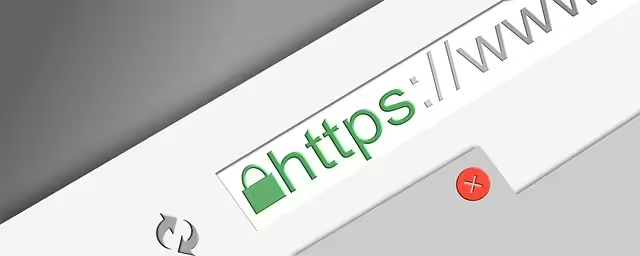
HTTPS encryption (the “s” in
https://). -
The browser padlock (the “badge” in the URL bar).
In 2014, Google officially confirmed that HTTPS is a ranking signal. Today, it is a foundational requirement. If your site is not on HTTPS, Google will flag it as “Not Secure” in the Chrome browser, which is the opposite of a website security badge. This “Not Secure” warning will destroy user trust and drive visitors away.
So, while a premium website security badge for malware scanning does not directly boost your SEO, getting the foundational SSL certificate (which gives you the padlock badge) is one of the most important SEO tasks you can perform. The other types of website security badge help your business by improving conversions, which is the ultimate goal of your SEO traffic.
How to Get the 3 Main Types of Security Badges (Step-by-Step)
Getting a website security badge is not a single process. It depends entirely on which type of badge you are seeking. Here is the technical breakdown for each of the three main categories.
Type 1: The SSL/TLS Certificate (The Padlock Badge)
This is the most important website security badge, and it is non-negotiable. This badge is the small padlock icon you see in your browser’s address bar. It signifies that your site uses SSL/TLS (Secure Sockets Layer/Transport Layer Security).
In simple terms, SSL creates an encrypted, secret tunnel between your website’s server and your visitor’s browser. This tunnel prevents hackers from “listening in” and stealing any data that is sent, such as passwords, names, or credit card numbers.
How to Get This “Badge”:
You get the padlock by installing an SSL certificate on your server. You have two main paths for this:
-
Free Option (Let’s Encrypt): For 99% of small businesses, this is the correct answer. Let’s Encrypt is a non-profit Certificate Authority (CA) that provides free SSL certificates. Almost every modern web host (SiteGround, Kinsta, Bluehost, GoDaddy, etc.) has a “one-click” integration to install a free Let’s Encrypt certificate. You log into your web hosting control panel, find the “SSL” section, and activate it for your domain. It renews automatically. This gives you the HTTPS and the browser padlock. This is a must have.
-
Paid Option (Premium CAs and Site Seals): Why would anyone pay if it is free? Because paid certificates from major CAs like DigiCert (which now owns the Norton seal), Sectigo, or GeoTrust can come with an additional, visual website security badge.
-
Organization Validated (OV) or Extended Validation (EV) certificates require the CA to manually verify your business is a real, legal entity.
-
In return, they provide you with a dynamic site seal (like the famous Norton checkmark) to display on your site. This seal is a separate visual website security badge that you can place in your footer, which provides a higher level of “brand name” trust than the simple padlock alone.
-
Bottom Line: All sites need an SSL certificate. Start with the free Let’s Encrypt option. If you run a high-volume e-commerce store, you can upgrade to a paid EV/OV certificate to get the additional branded website security badge for your checkout page.
-
Type 2: Malware & Vulnerability Scanning Badges
An SSL certificate is like a secure armored car. It protects the data in transit. But it does not protect your website (the “bank”) from being broken into. Hackers can still infect your site with malware, viruses, or code injections.
This is where a malware scanning website security badge comes in. This badge is proof that you subscribe to a service that actively scans your website every day for malicious code and vulnerabilities.
How to Get This Badge:
This type of website security badge is almost always a paid subscription service. You are paying for the security scanning, and the badge is your reward for being a clean, safe customer.
-
Subscribe to a Security Service: You sign up with a reputable website security company.
-
They Scan Your Site: The service will perform an initial deep scan of your site. If it is clean, you are approved. If it finds malware, you must clean it (or pay them to clean it) before you can get the badge.
-
Display the Badge: Once your site is verified as clean, the service gives you a snippet of JavaScript code. You paste this code into your website’s footer. This code displays the dynamic website security badge.
-
Maintain the Service: The service scans your site daily. If they ever find malware, your website security badge is automatically disabled until the site is clean again. This “live” nature is what gives the badge its power and authenticity.
Key Entities (The Badge Providers):
-
TrustedSite (formerly McAfee Secure): This is one of the most popular and recognized seals. The blue McAfee/TrustedSite logo is well-known and tests well for user trust.
-
DigiCert (formerly Norton Secured Seal): This is the “Cadillac” of trust seals. The Norton checkmark is one of the most recognized and trusted symbols on the internet. It is often bundled with their premium SSL certificates.
-
Sucuri: Very popular in the WordPress community. Their service provides a firewall and cleanup, and it comes with a “Sucuri SiteCheck” website security badge to show your site is monitored and protected.
-
Wordfence: This is a popular WordPress security plugin. Their premium service can also come with a form of verification or badge, showing your site is protected by their firewall.
Type 3: Payment Gateway & Business Verification Seals
This final category of website security badge is not about your site’s code, but about your business. It proves two things: 1) you use a secure payment processor, and 2) you are a real, accountable business.
How to Get This Badge:
-
Payment Gateway Badges: If you use Stripe, PayPal, Authorize.net, or Square to process payments, you are already using a PCI-compliant, secure system. These companies want you to show their logo.
-
How to get: Log into your account with your payment provider. They will almost always have a “Brand” or “Logos” page in their merchant resources.
-
What it is: They provide you with image files (static badges) that say “Payments Secured by Stripe” or “Pay with PayPal.”
-
Value: This is “borrowed trust.” People trust PayPal, so seeing that logo on your site makes them trust your checkout process. This is a very common (and recommended) website security badge for e-commerce stores.
-
-
Business Verification Seals: This website security badge is not technical. It verifies your business is legitimate. The most famous example is the Better Business Bureau (BBB) Accredited Business seal.
-
How to get: You must apply for accreditation with the BBB. This involves a vetting process where they verify your business address, phone number, and that you adhere to their standards of trust.
-
What it is: Once you are approved and pay your dues, you get to display the dynamic BBB seal. When clicked, it shows your business’s profile, rating, and any customer complaints.
-
Value: This is extremely valuable for service-based businesses (like lawyers, contractors, or consultants) where trust in the company is just as important as trust in the website. It shows you are a real, accountable entity.
-
Free vs. Paid Badges: A Cost-Benefit Analysis
This is the point where a small business owner must perform a cost-benefit analysis. Are paid badges worth the money?
What You Can Get for Free:
-
The SSL Padlock (via Let’s Encrypt): This is 100% free and 100% mandatory. Your web host almost certainly provides this. This is the baseline.
-
Static Payment Badges (PayPal, Stripe): These are free to use if you are a customer of their service. You just download the image and add it to your site.
Analysis of Free Options: This is the bare minimum for digital trust. In 2025, having the SSL padlock is like having a front door on your store. It is not optional, and it does not make you special. The static payment badges are good and should be used, but savvy users know they are just images.
What You Must Pay For:
-
Premium SSL with a Branded Site Seal (DigiCert, Sectigo): You are paying for the brand recognition of the seal.
-
Daily Malware Scanning Badges (TrustedSite, Sucuri): You are paying for an active, daily security service, and the website security badge is the proof.
-
Business Verification Seals (Better Business Bureau): You are paying for the background check and membership in the organization.
Analysis of Paid Options: This is where you move from “being secure” to “profiting from proving you are secure.” The cost for a premium website security badge can range from $100 a year to over $1,000 a year, depending on the provider.
Is it worth it? This depends on your business model.
-
What is the best security badge for a website? There is no single “best” one. The best website security badge is the one that matches your business needs.
-
For E-Commerce Stores: Yes, 100%. A paid, recognizable website security badge (like TrustedSite or the Norton/DigiCert seal) is a powerful conversion tool. If a $200/year badge stops just one customer a week from abandoning a $50 cart, it has paid for itself multiple times over. The “trust trifecta” for e-commerce is: 1. SSL Padlock, 2. Malware Scan Badge, 3. Payment Processor Badge.
-
For Lead Generation Sites (Contractors, Lawyers, Consultants): Your “conversion” is a user’s personal information. Trust is essential. The best combination here is: 1. SSL Padlock, 2. Business Verification Seal (like the BBB). This shows your site is secure and your business is legitimate.
-
For Blogs or Basic Informational Sites: No. A paid website security badge is likely overkill. The free SSL padlock from Let’s Encrypt is all you need to show you are secure. Focus your budget on content.
Implementation: How to Add a Trust Badge to Your Website
You have subscribed to a service and you have your website security badge. Now, how do you add it to your site?
When you sign up for a dynamic website security badge service (like TrustedSite, DigiCert, or the BBB), you will not be given an image file. Instead, you will be given a small “snippet” of code. This code is usually JavaScript or a line of HTML.
This code, when placed on your site, “calls” the provider’s server and displays the badge. Here is a simple, step-by-step guide on how to install it.
Step 1: Get Your Code Snippet
Log into your account with your badge provider. Find the “display settings” or “installation” page. Copy the snippet of code they provide. It will look something like this (this is just an example):
<script type="text/javascript" src="https://seals.trustedprovider.com/script.js"></script>
Step 2: Add the Code to Your Website
You need to paste this code into a part of your website that appears on every page, or at least on the key pages where you want the website security badge to appear. The most common place is the website’s footer.
Here is how to do it on the most popular platforms:
-
On WordPress:
-
Log into your WordPress dashboard.
-
Go to Appearance > Widgets.
-
Drag a “Custom HTML” widget into your Footer widget area.
-
Paste the code snippet from your provider into the text box.
-
Click “Save”.
-
Advanced method: You can also go to Appearance > Theme File Editor and paste the code directly into your
footer.phpfile, just before the closing</body>tag. (Warning: Be very careful when editing theme files).
-
-
On Shopify:
-
Log into your Shopify admin.
-
Go to Online Store > Themes.
-
On your current theme, click Actions > Edit code.
-
In the file list on the left, find the file named
footer.liquid. -
Scroll to the bottom of this file.
-
Paste your code snippet just before the closing
</footer>tag. -
Click “Save”.
-
-
On Wix or Squarespace:
-
These platforms make it even easier. Go to the page (or footer) editor.
-
Look for an option to “Add Element” or “Add Block”.
-
Find the “Embed” or “Custom Code” or “HTML” block.
-
Drag this block to where you want the badge to appear.
-
Paste your code snippet into the block and save.
-
Best Practices for Trust Badge Placement
Where you put your website security badge is as important as having one.
-
Global Footer: This is the most common spot. It puts the website security badge on every single page of your site, building persistent, sitewide trust.
-
Checkout Pages: This is the most important location. You must place your trust signals directly on your payment and checkout pages. Place your website security badge right next to the credit card fields and the “Complete Purchase” button. This is the moment of highest user anxiety, and it is where the badge does its most important work.
-
Lead Generation Forms: If you have a “Contact Us” or “Get a Quote” form, place a website security badge directly underneath the “Submit” button. This reassures users that the personal information they just typed is being sent securely.
-
Homepage: Many businesses place a website security badge “above the fold” (on the top part of the homepage) to establish credibility from the very first second a visitor arrives.
Critical Pitfalls: How to Lose Trust with Badges
A website security badge is a tool. And like any tool, it can be used incorrectly. Misusing a badge can make you look less trustworthy than having no badge at all. Avoid these critical mistakes.
Warning #1: Using Fake or Static Badges (The Trust “Lie”)
This is the cardinal sin. Never, ever go to Google Images, search for a “secure” logo, download it, and upload it to your website. This is a fake website security badge.
Users are skeptical. They will hover over the badge. If their cursor does not change to a “click” icon, they will be suspicious. If they click it and nothing happens, you are caught in a lie. A fake website security badge is fraud. It tells the user, “I am trying to trick you into trusting me.” This is far worse than having no badge. Only use the official, dynamic website security badge provided by the service you are paying for.
Warning #2: Expired Seals (The “Negligence” Error)
A dynamic website security badge is tied to your subscription. If you forget to renew your SSL certificate or your malware scanning service, your badge will stop working.
When a user clicks on it, it will show an “Expired” or “Invalid” certificate. This is a digital catastrophe. It is the equivalent of a restaurant displaying an expired health inspection certificate on its wall. It tells users you are not on top of your own security. Set a calendar reminder for all your security service renewals. Do not let your website security badge expire.
Warning #3: Badge Clutter (The “NASCAR Effect”)
You are proud of your security. You have an SSL, a malware scanner, a BBB seal, and your PayPal badge. So, you put all four of them in your footer. This is a mistake.
This “badge clutter” does not look more secure. It looks desperate, messy, and unprofessional. It can also slow down your page load time as your site has to load four different scripts. This is the “NASCAR effect”—plastering your site with so many “sponsors” that it loses all professionalism.
Curate your trust signals. Pick the two most powerful badges for your audience and display them cleanly.
-
For E-Commerce: Your Malware Scan Badge (e.g., TrustedSite) + Your Payment Badge (e.g., “Secured by Stripe”).
-
For Service Businesses: Your Malware Scan Badge + Your Business Badge (e.g., BBB).
Moving from Visual Security to Actual Security
A website security badge is not just an image. It is the final, visual layer of a comprehensive security strategy. It is the proof. It is the reassurance you offer to a customer at the exact moment they are deciding whether or to trust you.
For a small business, this trust is your most valuable asset.
Here is your actionable plan:
-
Today: Log into your web host and ensure your free Let’s Encrypt SSL is activated. This gives you the mandatory HTTPS and the browser padlock. This is the foundational website security badge.
-
Analyze: Look at your business. Are you an e-commerce store? Do you ask for sensitive personal information?
-
Invest & Test: If the answer is yes, invest in one high-quality, recognizable, paid website security badge. A daily malware scanning seal from TrustedSite or DigiCert is an excellent place to start. Implement it on your checkout page. Test your conversion rates. The data will show you the value.
Building a secure website is the technical foundation. Proving that security to your customers with the right website security badge is how you turn data integrity into revenue. Do not just be secure; be visibly secure.